




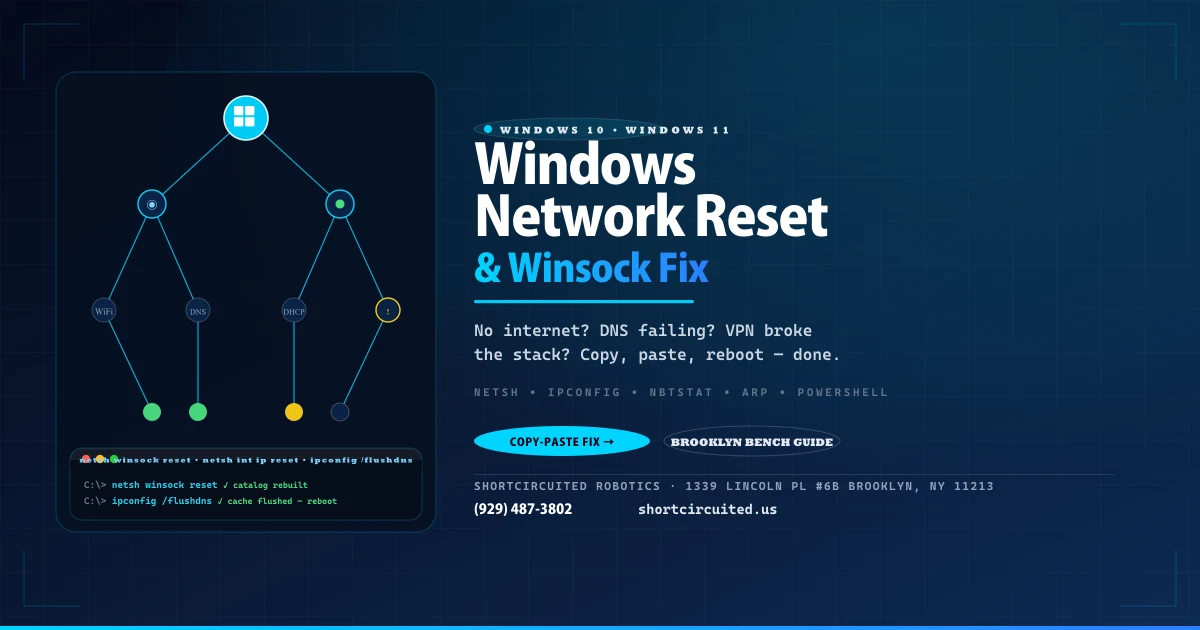
Wi-Fi says Connected, no internet. Or every browser fails but ping to 8.8.8.8 works. Or a VPN uninstalled and networking never came back. On our Brooklyn bench every one of those symptoms ends with the same tool: a full Windows network reset from the command line — Winsock first, TCP/IP second, then DHCP, DNS, NetBIOS and ARP, in exactly that order. Copy the block below, run it as administrator, reboot, and let Windows rebuild what is corrupted.
- Run as administrator. Right-click Command Prompt or Windows PowerShell → Run as administrator. Without elevation every netsh and arp command prints
Access is deniedand stages nothing. - Save your work. You will reboot at the end — winsock and stack resets only apply at boot.
- Disconnect your VPN first. The reset touches every adapter including virtual ones (VPN, Hyper-V, WSL). Static IPs will need re-entry after.
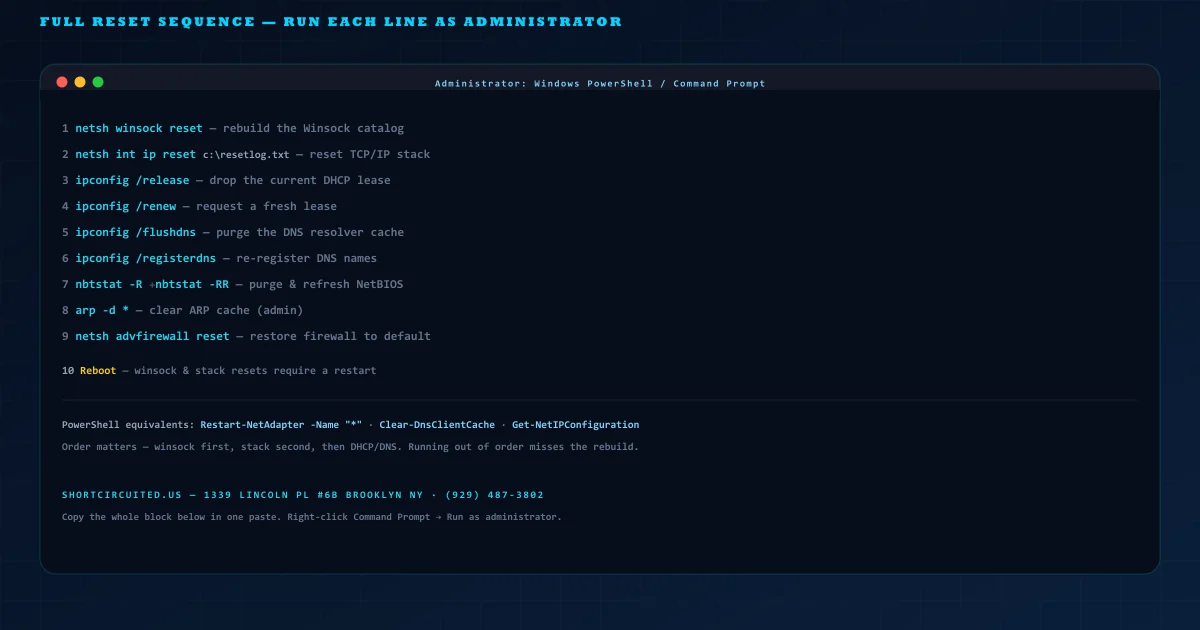
The One-Paste Fix (copy this whole block)
Open Command Prompt (Admin) — on Windows 11 type cmd in Start, right-click → Run as administrator — paste this block and press Enter. Then reboot.
:: Full Windows network reset — run as Administrator, then REBOOT
netsh winsock reset
netsh int ip reset c:\resetlog.txt
ipconfig /release
ipconfig /renew
ipconfig /flushdns
ipconfig /registerdns
nbtstat -R
nbtstat -RR
arp -d *
netsh advfirewall reset
:: Now restart the computer — winsock & TCP/IP rebuild at boot
Leave the order. Winsock and TCP/IP must stage before the DHCP/DNS layer asks for new addresses. Running them out of order or skipping the reboot leaves the old catalog loaded.
What Each Command Actually Does
This is not random voodoo. Each line resets a different layer of Windows networking:
Winsock is the socket layer every program calls to open a network connection. VPN clients, firewalls, malware filters and bad uninstalls install LSP/WSP providers into it; when they corrupt, nothing can open a socket — browser, Store, ping, even Windows Update. This command deletes the catalog and queues a clean rebuild at next boot. You will see: Successfully reset the Winsock Catalog. You must restart the computer.
netsh winsock resetAdvanced: netsh winsock reset catalog does the same explicitly. Need to inspect first? netsh winsock show catalog.
This resets the TCP/IP stack itself: interface, neighbor, route and related registry keys under SYSTEM\CurrentControlSet\Services\Tcpip. It recreates them at boot. Always give it a log file so you can see what it touched:
netsh int ip reset c:\resetlog.txtThe log is a plain transcript — open it after reboot if something still misbehaves.
/release drops the current IPv4 and IPv6 leases on all adapters; /renew asks the router/DHCP server for fresh ones (IP, gateway, DNS, subnet). The machine blinks offline between the two — normal. On a static-IP machine these do nothing; re-enter the static after the reset.
ipconfig /release
ipconfig /renew/flushdns empties the local DNS resolver cache — the classic fix for sites that load on one device but not this one, or for DNS-poisoning leftovers. /registerdns re-registers the machine’s names with its DNS servers (matters on domain-joined and dynamic-DNS setups).
ipconfig /flushdns
ipconfig /registerdns
Expected: Successfully flushed the DNS Resolver Cache.
-R purges the remote NetBIOS name cache; -RR sends refresh packets to WINS. Fixes phantom name resolution on legacy Windows networks and SMB shares that resolve to a dead host.
nbtstat -R
nbtstat -RRFlushes IP-to-MAC mappings. Fixes gateway unreachable after router swap and stale ARP after moving between networks. Requires elevation.
arp -d *This removes all custom firewall rules and returns Defender Firewall to defaults. Only include it if firewall rules are suspected (e.g., after aggressive hardening tools). It will delete allow/block rules you added.
netsh advfirewall resetSkip this line if you are not troubleshooting firewall issues.
Nothing above truly takes effect until restart. Winsock and TCP/IP rebuild during boot. Reboot immediately after the block.
PowerShell Equivalents
Same result, PowerShell verbs — also run as Administrator:
# PowerShell (Admin) — same full reset
netsh winsock reset
netsh int ip reset c:\resetlog.txt
Clear-DnsClientCache
Register-DnsClient
nbtstat -R; nbtstat -RR
arp -d *
# Per-adapter bounce instead of release/renew (optional)
Restart-NetAdapter -Name "*" -Confirm:$false
# Verify
Get-NetIPConfiguration
Get-DnsClientCache | Select-Object -First 5
Verify It Worked
After reboot, open Command Prompt (no admin needed now) and run:
ipconfig /all
ping 127.0.0.1        :: loopback — stack itself
ping 8.8.8.8          :: reachability without DNS
ping google.com       :: DNS resolution
netsh winsock show catalog | findstr /i "provider"
netsh interface show interface- ipconfig /all — confirm you have an IPv4 address, a gateway and DNS servers. Missing gateway = router/cable issue, not Winsock.
- ping 127.0.0.1 succeeds but 8.8.8.8 fails — stack is up, upstream or adapter is not.
- ping 8.8.8.8 succeeds but google.com fails — pure DNS. Flush again, try
1.1.1.1and8.8.8.8as manual DNS, check hosts file. - netsh interface show interface — confirms the adapter is
EnabledandConnected(the GUI sometimes lies).
Common Gotchas
- No reboot = no fix. The success message says You must restart and it means it. The old catalog stays loaded until boot.
- VPN / Hyper-V / WSL adapters flicker. They get released and renewed with everything else. Disconnect VPN before the reset; reconnect after reboot.
- Static IP disappears after /release. By design — re-enter it in adapter Properties → IPv4 after the reset.
- Firewall reset is destructive. Only include
netsh advfirewall resetwhen you know rules are the problem. - Route table and proxy too? Rarely needed, but:
route -fflushes routes (reboot restores defaults) andnetsh winhttp reset proxyclears a stale WinHTTP proxy. Only use if instructed.
The Settings App Button vs. These Commands
Settings → Network & Internet → Advanced network settings → Network reset does a blunt reinstall of every adapter, wipes known Wi-Fi networks and resets all components, then reboots. It works, but you lose drivers, Wi-Fi profiles and any custom adapter settings with no granularity.
The command block above is surgical: it rebuilds Winsock and TCP/IP and purges caches while leaving drivers and saved Wi-Fi intact. Use the button when you want nuclear; use the commands when you want control and a log file (c:\resetlog.txt).
Frequently Asked Questions
What does netsh winsock reset actually fix?
It rebuilds the Windows Sockets (Winsock) catalog — the layer every program uses to open sockets. Malware, VPN clients, old firewalls and incomplete uninstalls corrupt its LSP / WSP entries and break all networking at once (browser, ping and Store all fail). Winsock reset deletes the corrupted entries and restores the defaults; it requires a reboot to take effect.
Do I have to restart after winsock reset or netsh int ip reset?
Yes — both commands stage the reset and Windows only rebuilds the catalogs at boot. Until you reboot the old, corrupted catalog is still loaded. Reboot immediately after running them; running more commands before rebooting is fine, but do not skip the reboot.
Will a full network reset delete my VPN or virtual adapters?
The commands themselves do not uninstall adapters, but netsh int ip reset and ipconfig /release+renew will drop and reacquire addresses on every adapter, including VPN, Hyper-V, WSL and VM virtual NICs. If you run with a VPN connected, disconnect it first, run the reset, reboot, then reconnect. Static IPs will need to be re-entered.
Why do I get "Access is denied" or "The requested operation requires elevation"?
Every command in this guide must run elevated. Right-click Command Prompt or PowerShell and choose Run as administrator. Without elevation the catalog files are locked and the commands silently do nothing or print Access is denied.
What is the difference between ipconfig /flushdns and /registerdns?
/flushdns empties the local DNS resolver cache (stale or poisoned records). /registerdns re-registers the machine’s DNS names with its configured DNS servers and with Active Directory. Flush is for client browsing issues; register is for domain-joined machines that need to refresh their DNS records after a change.
Should I use Settings > Network reset instead of commands?
Settings > Network & Internet > Advanced network settings > Network reset does a blunt reinstall of all adapters and resets every network component. It works, but it removes and reinstalls drivers, resets known Wi-Fi networks and requires a reboot with no granularity. The command sequence here is surgical: it resets the exact subsystems that are corrupted while leaving drivers and Wi-Fi profiles intact. Use the button when you want nuclear; use the commands when you want control.
The reset completed but I still have no internet — what next?
Check layer by layer: ipconfig /all (do you have an IP, gateway and DNS?), ping 127.0.0.1 (loopback), ping 8.8.8.8 (reachability without DNS), ping google.com (DNS). If the gateway is missing, check the router and cable; if DNS fails only, try netsh winsock reset catalog and change DNS to 1.1.1.1 / 8.8.8.8. If nothing works, verify the adapter in Device Manager and run netsh interface show interface to confirm it is enabled and connected.
Still No Internet After the Reset?
That is when we want to see the machine. Bring it in — we will verify adapter health in Device Manager, test with a live Ethernet, check DHCP scope and DNS reachability, inspect Winsock catalog entries with netsh winsock show catalog, and trace upstream. If you are local in Brooklyn: walk-ins welcome.
Contact us or schedule a drop-off →
ShortCircuited Robotics — 1339 Lincoln Pl #6B, Brooklyn, NY 11213 · (929) 487-3802
Related reading: protecting your machines from malware (a common Winsock corrupter), our Brooklyn business network & security install guide, and the shop FAQ for turnaround and pricing.